Enter Attendance
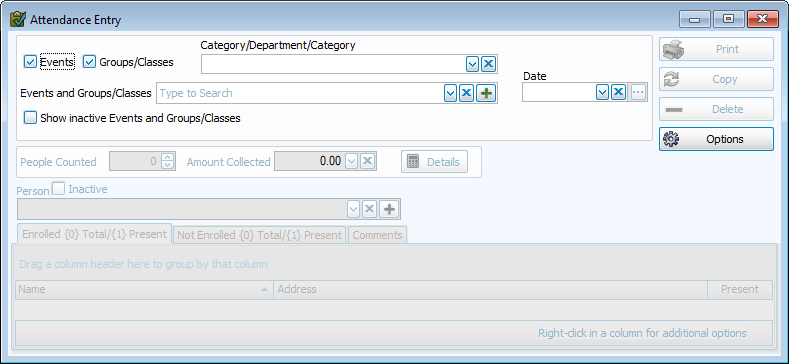
Attendance Entry allows you to enter attendance by person or by headcount for Events, Groups, and Classes.
Access Attendance Entry
To access from the Button Bar, go to Attendance > Attendance Entry

Enter Attendance
-
Select an Event, Group, or Class

Select the event or class for which you're entering attendance. Filter your options by deselecting check boxes for Events or Groups/Classes. You can also filter by Division/Department/Category in the first drop down. In the second drop down, select the Event, Group or Class. You can also type to search within the drop down. To choose one that has been made Inactive, check the box in the lower left to include Inactive records. To add or edit, see Manage Events or Groups & Classes.
-
Select a Date
Use the calendar picker or MM/DD/YYYY numerical entry to indicate the attendance date. If you have events, such as worship services at different times, create an event for each time.
There are several ways you can take attendance.
-
Option A: Attendance by Head Count
Enter the total number of people counted and the total amount collected.

Enter more specific information on the count or use this in conjunction with tracking Attendance by Person with
 .
. 
-
Option B: Attendance by Person
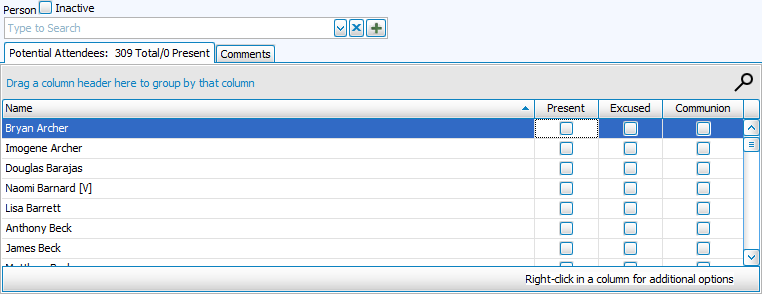
Events will list all records available in Membership as the Potential Attendees. Use the drop down above the tab to search for specific people. To add a new Membership record, click
 .
. Check an individual as Present to log their attendance. If selected in Attendance Options, you may also check whether they had Communion or an Excused Absence. To check Present for an entire family, right click on the grid and choose Check 'Present' for Entire Family.
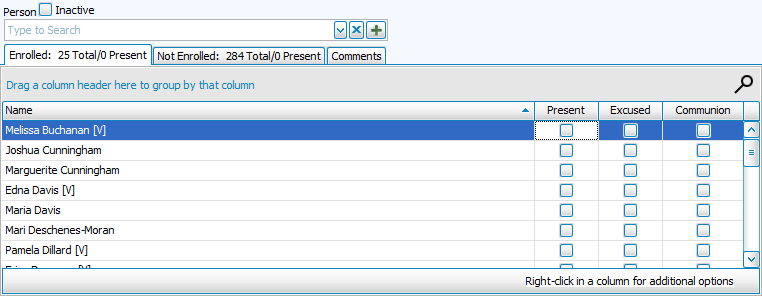
Groups and Classes have separate tabs to indicate attendance for those that are enrolled in the group or class, and those that are not. Check those present as usual. From the Not Enrolled tab, you can add any additional guests who have records in Membership as Present for the day, with or without enrolling them as well.
-
Enter Comments
The Comments tab holds general notes. You might make a note of music or scripture, the weather conditions, or discussion topics. You'll be able to include these comments on reports, if you'd like to see your notes about that particular day.
-
Optional: Print Entries
Click
 to print an Event Summary detailing attendance. You can also pull the people logged for reports, labels, or an email list. Entries are saved as you enter, so once you're finished, just close the window to complete attendance entry.